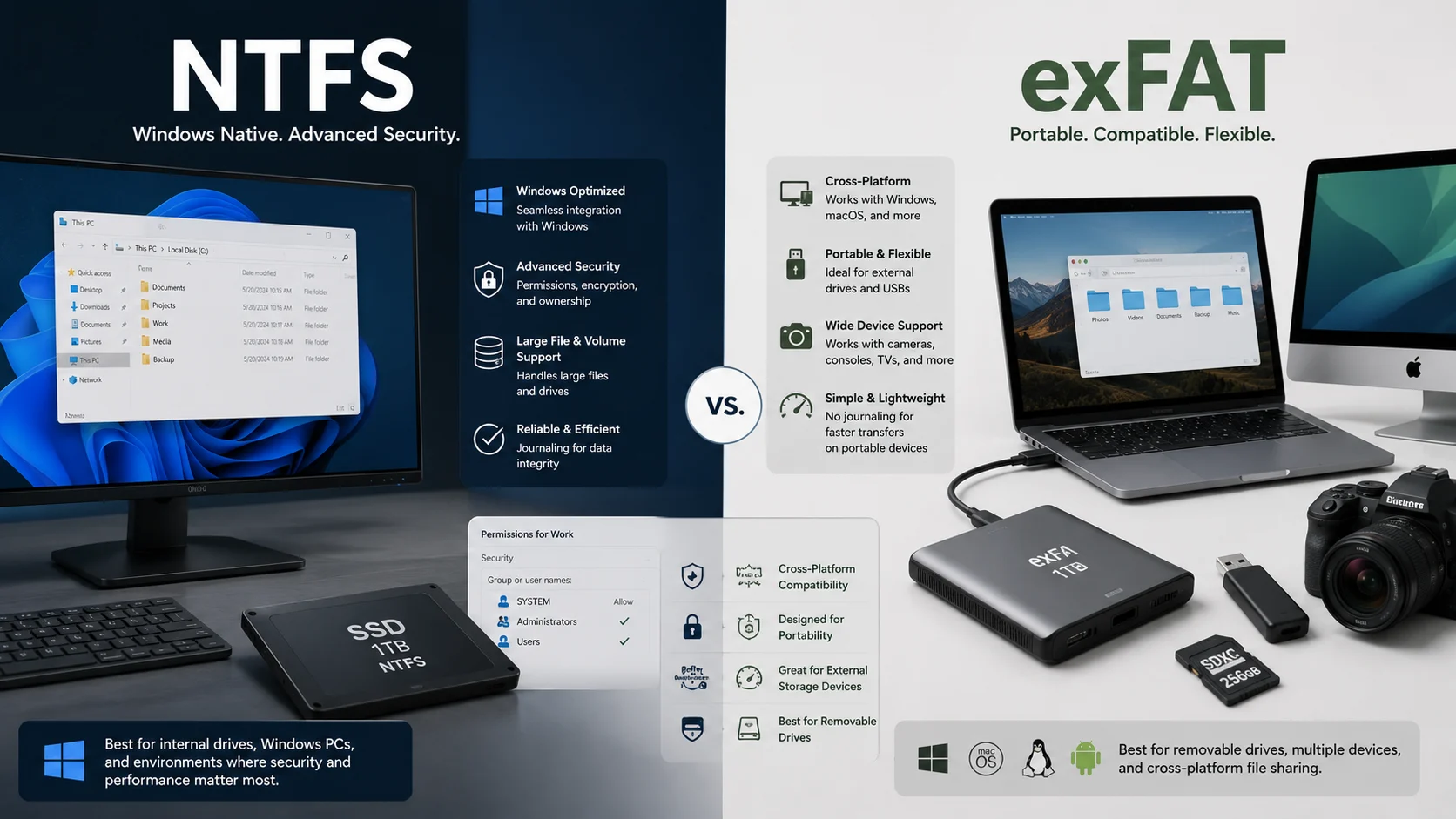
For Windows system and internal drives, NTFS is generally the better choice because it supports advanced security, permissions, journaling, and file management. exFAT is usually better for portable storage because it offers broad compatibility across Windows, macOS, cameras, and other devices while supporting very large files
Choosing between exFAT and NTFS may look like a simple formatting decision, but the file system you select can affect compatibility, security, reliability, portability, and how your data is managed. The question exfat or ntfs is especially common when formatting USB drives, external SSDs, memory cards, and hard drives.
NTFS, or New Technology File System, is the primary file system associated with modern Windows installations. It was designed for reliable storage and provides advanced capabilities such as journaling, permissions, compression, and support for Windows security features.
exFAT, or Extended File Allocation Table, was designed with removable storage and portability in mind. It provides support for very large files while offering compatibility across many operating systems and consumer devices.
The confusion can lead to practical mistakes. Choosing NTFS for a drive that must frequently move between Windows and macOS can create compatibility limitations, while choosing exFAT for a Windows system drive means giving up important features that Windows expects from its primary file system.
The best choice therefore isn’t determined by which file system sounds newer or faster. It depends on where the drive will be used, which devices need access to it, and whether portability or advanced Windows functionality matters more.
Core Definitions
What Is NTFS?
NTFS stands for New Technology File System. It is a file system developed by Microsoft and widely used by Windows.
As a technical term, NTFS is a proper noun and acronym referring to a specific method of organizing and managing files on a storage device.
NTFS is designed for environments where reliability, security, permissions, and advanced file management are important. It is commonly used for Windows boot drives, internal SSDs, internal hard drives, and external drives that remain primarily within a Windows environment.
One important NTFS feature is journaling. A journal records information about file system changes, helping Windows recover the file system more effectively after certain unexpected interruptions.
NTFS also supports file and folder permissions, compression, encryption related technologies, quotas, and other advanced capabilities that make it suitable for professional and enterprise environments.
What Is exFAT?
exFAT stands for Extended File Allocation Table. It is a file system developed for modern removable storage and is particularly useful when portability is important.
Like NTFS, exFAT is a proper technical term and acronym. It identifies a specific file system rather than a general type of storage.
Its major advantage is compatibility. Modern Windows and macOS systems generally support exFAT for both reading and writing. Many cameras, televisions, media devices, gaming systems, and other hardware products also support it.
exFAT is particularly useful when individual files are too large for FAT32. This makes it practical for high resolution video, large archives, disk images, backups, and other large files.
However, exFAT doesn’t provide the same advanced security, permissions, and journaling capabilities associated with NTFS.
exfat or ntfs: What’s the Difference?
The fundamental difference is their intended purpose. NTFS is optimized for Windows environments and advanced file management, while exFAT is optimized for portability and compatibility.
| Feature | NTFS | exFAT |
|---|---|---|
| Full name | New Technology File System | Extended File Allocation Table |
| Primary purpose | Windows system and internal storage | Portable and cross platform storage |
| Windows support | Excellent | Excellent |
| macOS support | Generally read support, writing may require additional software | Generally read and write support |
| Journaling | Yes | No |
| Windows permissions | Yes | No equivalent NTFS permission system |
| File compression | Supported | Not equivalent to NTFS compression |
| Encryption capabilities | Supports Windows encryption technologies | Does not provide equivalent native NTFS security features |
| Portability | Moderate | Excellent |
| Removable storage | Good | Excellent |
| Internal Windows storage | Excellent | Less commonly preferred |
| Cross platform storage | Less convenient | Excellent |
| Large file support | Yes | Yes |
| Typical use | Windows computers and system drives | USB drives, external storage, memory cards |
Quick Recap
NTFS is primarily designed for Windows and advanced storage management.
exFAT is primarily designed for portable storage and broad compatibility.
Both support modern large files.
The right choice depends on whether Windows functionality or portability is more important.
Is exFAT vs NTFS a Grammar, Vocabulary, or Usage Issue?
The difference between exFAT and NTFS isn’t a grammar issue in the conventional sense. It is primarily a technical vocabulary and usage distinction.
The two terms cannot be used interchangeably because they identify different file systems.
In casual conversation, someone might say, “Format the drive for Windows,” without naming the exact file system. In technical documentation, however, that wording can be too vague.
A professional IT guide should specify NTFS or exFAT when the distinction affects compatibility or functionality.
Academic writing also benefits from precise terminology. A technical report discussing Windows storage, removable media, data management, or operating system architecture should identify the actual file system rather than using a broad term such as “drive format.”
The same principle applies to workplace communication. If an employee needs to transfer files between Windows and macOS, saying “use a compatible format” doesn’t provide enough information. Saying “use exFAT” gives the reader a concrete instruction.
When Should You Use NTFS?
NTFS is generally the better option when a storage device is primarily used with Windows.
A Windows desktop with an internal SSD is a straightforward example. The operating system, applications, documents, and user accounts can all operate naturally within an NTFS environment.
In the workplace, NTFS can be particularly valuable because Windows permissions allow administrators to control access to files and folders.
Workplace example: A company employee stores confidential project files on a Windows workstation. NTFS provides file system capabilities that support structured access control.
Academic example: A university researcher uses a Windows workstation to store large datasets and research files. NTFS provides an appropriate environment for permanent Windows storage.
Technology example: A Windows computer contains an internal 2 TB SSD used for applications, games, development tools, and documents. NTFS is the natural choice because the drive is primarily dedicated to Windows.
It is also useful when journaling, file permissions, compression, or other advanced Windows features are important.
NTFS Usage Recap
Choose NTFS when the drive primarily belongs to a Windows environment.
It is especially suitable for internal SSDs, internal hard drives, Windows system partitions, and storage requiring advanced Windows features.
When Should You Use exFAT?
exFAT is generally the better option when portability and cross platform compatibility are important.
Suppose you have an external SSD that moves between a Windows laptop and a Mac. Using exFAT can make the exchange of files much easier because modern versions of both operating systems generally support the format.
Workplace example: A designer transfers large project files between Windows and Mac computers. An exFAT external SSD can provide a convenient shared storage format.
Academic example: A student moves research datasets between a university Mac and a personal Windows laptop. exFAT can simplify the process.
Technology example: A photographer uses a removable storage device to move large video files between a camera, computer, and media workstation. If all devices support exFAT, it can be a practical choice.
exFAT is also useful when files exceed the limitations associated with FAT32. Modern video files, large backups, virtual machine files, and other large data sets can therefore be stored more conveniently.
exFAT Usage Recap
Choose exFAT when portability is more important than advanced Windows functionality.
It is particularly useful for external SSDs, USB drives, memory cards, and other removable storage that needs to work across compatible devices.
Best File System by Use Case
| Use Case | Recommended File System | Why |
|---|---|---|
| Windows system drive | NTFS | Designed for Windows and advanced system features |
| Internal Windows SSD | NTFS | Strong Windows integration |
| Internal Windows HDD | NTFS | Suitable for permanent Windows storage |
| External drive used only with Windows | NTFS | Provides advanced Windows features |
| External drive shared between Windows and Mac | exFAT | Better cross platform compatibility |
| USB flash drive for multiple devices | exFAT | Broad compatibility with modern devices |
| Large video files | exFAT or NTFS | Both support very large files |
| Windows focused backup drive | NTFS | Better suited to Windows storage workflows |
| Portable media storage | exFAT | Designed for removable storage |
| Windows gaming PC storage | NTFS | Native Windows environment |
| Cross platform file transfer | exFAT | Convenient between compatible operating systems |
| Camera storage | Depends on device | Device specifications should be checked |
NTFS vs exFAT Advantages
| Feature | NTFS | exFAT |
|---|---|---|
| Windows integration | Excellent | Excellent |
| Cross platform compatibility | Moderate | Excellent |
| Journaling | Yes | No |
| Windows permissions | Yes | No equivalent |
| Windows compression | Yes | No equivalent |
| Portable storage | Good | Excellent |
| Internal storage | Excellent | Good |
| Large file support | Yes | Yes |
| Windows system drive | Excellent | Not normally recommended |
| Shared external storage | Good for Windows | Excellent for cross platform use |
| Advanced Windows features | Excellent | Limited |
| Simplicity for removable media | Good | Excellent |
When You Should NOT Use X or Y
There are several situations where choosing a file system without considering the environment can create unnecessary problems.
Do Not Choose NTFS Automatically for Every External Drive
NTFS is excellent for Windows, but an external drive may need to work with macOS, cameras, televisions, or other devices.
Do Not Choose exFAT for a Conventional Windows System Drive
A standard Windows installation is designed around NTFS. exFAT shouldn’t be treated as a drop in replacement for the normal Windows system file system.
Do Not Assume exFAT Has NTFS Security
exFAT does not provide the same Windows permissions and advanced security functionality associated with NTFS.
Do Not Assume Every Device Supports exFAT
Support varies between cameras, televisions, gaming systems, car systems, media players, and other hardware.
Do Not Assume NTFS Is Always Faster
Storage performance depends on the hardware, operating system, workload, file sizes, and other factors.
Do Not Format a Drive Without Backing Up Important Data
Changing the file system often involves formatting, which can remove access to existing data.
Do Not Choose Based Only on File Size
Large file support matters, but it shouldn’t be the only consideration. Compatibility, security, portability, and operating system requirements are equally important.
Common Mistakes and Decision Rules
| Correct sentence | Incorrect sentence | Explanation |
|---|---|---|
| Format the Windows system drive as NTFS. | Format the Windows system drive as exFAT. | NTFS is the conventional file system for Windows system storage. |
| Use exFAT for an external drive shared between Windows and Mac. | Always use NTFS for external storage. | Cross platform compatibility may make exFAT more suitable. |
| Use NTFS when Windows permissions are required. | Use exFAT when detailed Windows permissions are required. | NTFS provides Windows access control features that exFAT does not provide in the same way. |
| Check whether a camera supports exFAT. | Assume every camera supports exFAT. | Device compatibility varies. |
| Use exFAT for portable cross platform storage. | Use NTFS for every portable drive. | Portability is one of exFAT’s primary advantages. |
| Use NTFS for a Windows focused internal SSD. | Use exFAT because it works on more devices. | An internal Windows drive usually benefits more from NTFS features. |
Decision Rule
If Windows integration, security, permissions, or advanced file management is your priority, choose NTFS. If portability and cross platform compatibility are your priority, choose exFAT.
Device Selection Guide
| Device or Situation | Better Choice | Main Reason |
|---|---|---|
| Windows laptop internal drive | NTFS | Windows system compatibility |
| Windows desktop internal SSD | NTFS | Advanced Windows features |
| External SSD for Windows only | NTFS | Strong Windows integration |
| External SSD for Windows and Mac | exFAT | Cross platform read and write support |
| USB drive for general file transfer | exFAT | Broad compatibility |
| Windows boot drive | NTFS | Standard Windows system file system |
| Large video transfer drive | exFAT | Convenient cross platform use |
| Professional Windows workstation | NTFS | Permissions and file management |
| Portable drive for compatible cameras and computers | exFAT | Better portability |
| Shared storage between different platforms | exFAT | Cross platform compatibility |
exFAT or NTFS for SSDs and External Drives
The fact that a drive is an SSD doesn’t automatically determine which file system should be used.
An internal Windows SSD should normally use NTFS because the drive is part of a Windows environment.
An external SSD used exclusively with Windows can also use NTFS, especially if permissions and advanced Windows features matter.
However, an external SSD shared between Windows and macOS is a different situation. exFAT is often more convenient because it provides native support for reading and writing on modern versions of both platforms.
The same principle applies to external hard drives. The storage technology doesn’t determine the file system by itself. The intended workflow does.
exFAT or NTFS for Gaming
For PC gaming on Windows, NTFS is generally the natural choice.
Games installed on an internal Windows drive operate within an environment designed around Windows file system functionality. NTFS is therefore the conventional choice for internal gaming storage.
External gaming storage is more complicated. Compatibility depends on the specific console or gaming device.
Some devices support exFAT, while others may require a particular file system or impose additional formatting requirements. Always check the specifications of the exact device before formatting an external gaming drive.
exFAT or NTFS for Large Files
Both NTFS and exFAT are appropriate for modern large files.
This is an important distinction from FAT32, which has a well known individual file size limitation that can make it unsuitable for many modern video and backup workflows.
Large video projects, disk images, virtual machine files, archives, and other substantial data can be stored on both NTFS and exFAT.
The deciding factor is therefore usually not whether the file is large enough to require one of these formats. Instead, consider whether the drive needs Windows specific features or cross platform compatibility.
| Large File Scenario | Recommended Choice | Reason |
|---|---|---|
| Large files on internal Windows storage | NTFS | Strong Windows integration |
| Large video files shared between Windows and Mac | exFAT | Cross platform compatibility |
| Large Windows backup files | NTFS | Suitable for Windows focused storage |
| Large files on portable media | exFAT | Designed for removable storage |
| Large development files on Windows | NTFS | Advanced Windows file management |
| Large files transferred between compatible devices | exFAT | Convenient portability |
exFAT or NTFS in Modern Technology and AI Tools
Modern computing increasingly involves large datasets, high resolution video, machine learning models, generated media, virtual machines, and substantial project files.
For a Windows computer running local AI applications, NTFS is generally the practical choice for internal storage. It integrates naturally with Windows and provides advanced file system functionality.
exFAT becomes more attractive when datasets, media collections, or project files need to move between different operating systems.
For example, a researcher might keep an AI project on an internal NTFS drive but use an external exFAT SSD to transfer datasets between compatible Windows and macOS machines.
AI itself doesn’t determine the file system. The operating system, software requirements, portability needs, and storage workflow remain the important factors.
Technical Background and Etymology
NTFS means New Technology File System. The name reflects Microsoft’s effort to provide a more advanced file system for Windows environments than the older FAT family could offer.
exFAT means Extended File Allocation Table. The name connects it to the FAT family while indicating an expanded design intended to handle modern removable storage requirements.
The two systems therefore developed around different practical needs. NTFS emphasizes advanced operating system functionality, while exFAT emphasizes portability and compatibility.
A useful expert principle is:
The best file system is the one that matches the environment in which the storage will actually be used.
That principle explains why NTFS can be the superior choice for an internal Windows drive while exFAT can be the superior choice for a portable drive shared between operating systems.
Practical Case Study: Windows Workstation
Imagine a professional Windows workstation with a 2 TB internal SSD. The computer stores the Windows installation, applications, development projects, documents, and business files.
NTFS is the logical choice because the storage is permanently associated with Windows.
The concrete result is a file system that supports the Windows environment, permissions, journaling, and other advanced features instead of prioritizing cross platform portability that the workstation doesn’t need.
Practical Case Study: Cross Platform External SSD
Now consider a 2 TB external SSD used by a video editor who works on both Windows and macOS.
The drive contains large video projects and is regularly connected to computers running both operating systems.
exFAT is a practical choice because compatibility is more important than Windows specific permissions or other NTFS features.
The concrete result is simpler file transfer between compatible systems without requiring the drive to remain tied to a single operating system.
Error Prevention Checklist
Always use NTFS when
| Requirement | NTFS Recommendation |
|---|---|
| Windows system partition | Yes |
| Internal Windows SSD | Yes |
| Internal Windows HDD | Yes |
| Windows permissions | Yes |
| Journaling | Yes |
| Advanced Windows file management | Yes |
| Windows focused permanent storage | Yes |
Choose exFAT when
| Requirement | exFAT Recommendation |
|---|---|
| External cross platform storage | Yes |
| Windows and Mac file transfer | Yes |
| Portable SSD | Often |
| USB flash drive | Often |
| Large portable files | Yes |
| Broad removable device compatibility | Often |
| Windows specific permissions | No |
Always check the requirements of the device before formatting removable media. Most importantly, back up important files first.
Related Grammar Confusions You Should Master
Technical English contains many pairs and concepts that are easily confused.
- FAT32 vs exFAT: Understand the difference between older FAT32 storage and modern exFAT storage.
- SSD vs HDD: These describe storage technologies rather than file systems.
- Storage vs memory: Storage retains data, while memory generally refers to RAM used during active computing.
- Format vs partition: Formatting creates a file system, while partitioning divides storage into logical sections.
- Backup vs synchronization: Synchronization and backup serve different purposes.
- Encryption vs permissions: Encryption and access control protect information in different ways.
- Read vs write: Reading retrieves data, while writing stores or changes data.
- GB vs GiB: These represent different approaches to measuring digital capacity.
- MB vs MiB: These units also use different measurement conventions.
- File system vs operating system: A file system organizes stored data, while an operating system manages the computer as a whole.
FAQs
Is NTFS better than exFAT for Windows?
Yes, NTFS is generally better for Windows system and internal storage because it provides advanced Windows features.
Is exFAT better than NTFS for external drives?
exFAT is often better when the external drive needs to work across Windows, macOS, and other compatible devices.
Can Windows read exFAT?
Yes, modern Windows versions generally support reading and writing exFAT storage.
Can Mac read NTFS?
Modern macOS versions can generally read NTFS storage, but native write support has traditionally been limited compared with exFAT.
Should I use NTFS or exFAT for an external SSD?
Use NTFS when the SSD is mainly used with Windows and choose exFAT when cross platform compatibility is important.
Which is faster, exFAT or NTFS?
Neither is universally faster. Performance depends on hardware, workload, operating system, and file characteristics.
Is exFAT good for large files?
Yes. exFAT is designed to support very large files and is widely used for modern removable storage.
Should a Windows boot drive use exFAT or NTFS?
A conventional Windows boot drive should use NTFS because it is the standard Windows system file system.
Does exFAT have journaling like NTFS?
No. exFAT does not provide the same journaling functionality associated with NTFS.
Conclusion
The choice between exfat or ntfs depends on the environment rather than on one file system being universally superior.
NTFS is generally the better option for Windows system drives, internal storage, professional Windows workstations, and situations where permissions, journaling, security, and advanced file management are important.
exFAT is generally the better option for portable storage, external SSDs, USB drives, and situations where files need to move between Windows, macOS, and other compatible devices.
The simplest rule is this: choose NTFS for Windows focused storage and advanced functionality, and choose exFAT for portable storage and cross platform compatibility.
Before formatting any drive, check the requirements of every device that will use it and back up important data. That small step can prevent compatibility problems and unnecessary data loss.
Discover More Related Articles:
- Jewellery or Jewelry | Which Version Is Right for Your Audience In 2026
- Lisa or Lena | Why Are These Names So Easy to Confuse In 2026
- Si or Sí | The Common Spanish Spelling Confusion Explained In 2026